Layers
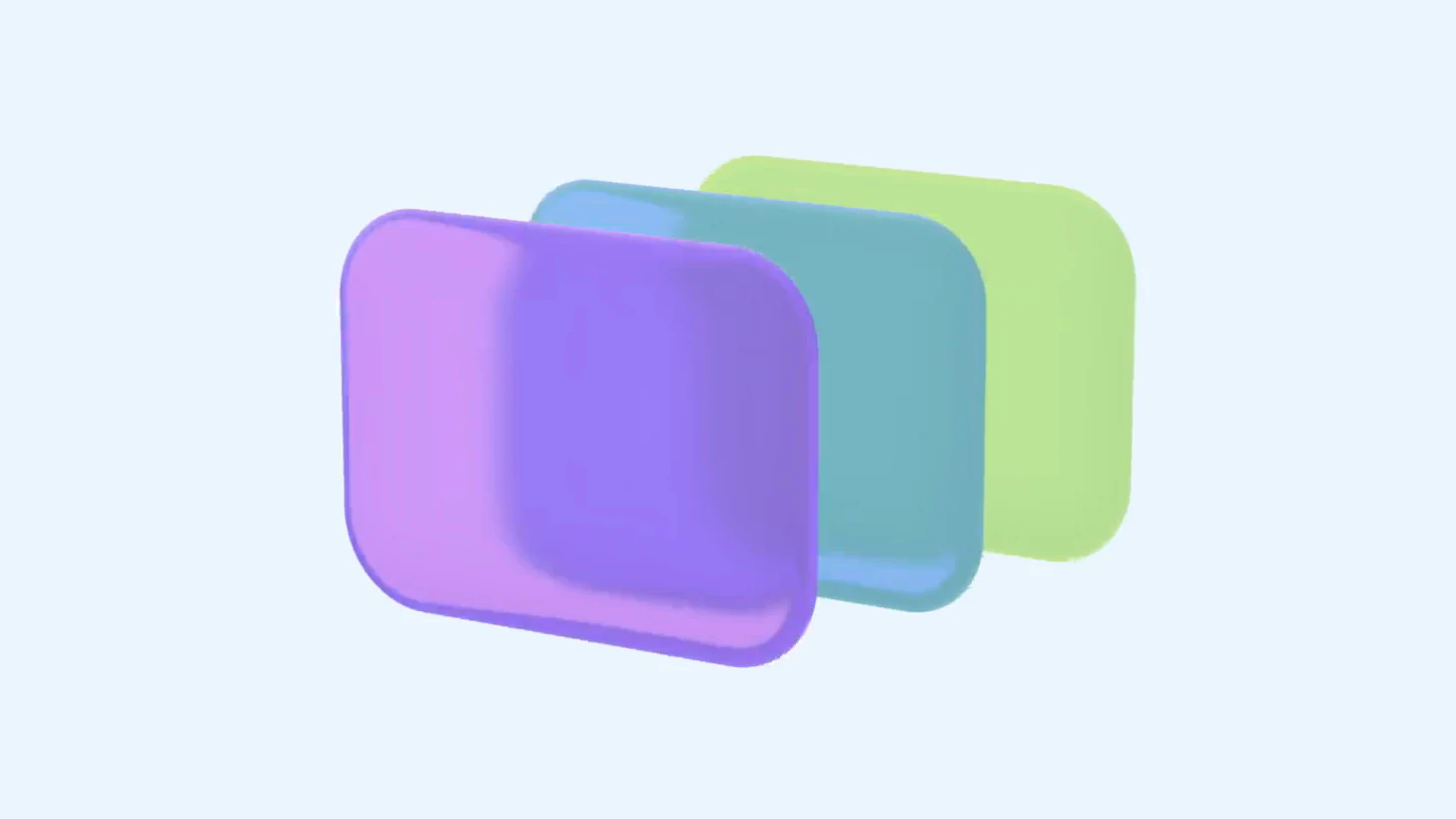
The left sidebar is your layer list. Two tabs: File, the tree of everything in the project, and Assets, the media you have uploaded.
The File tree
- Every row is a scene, group, or layer, indented to show what sits inside what.
- Order is depth. The top row is in front, the bottom row is behind. Drag a row to restack it, or to move it into or out of a group.
- Click selects the layer on the canvas and loads it in the right sidebar.
- Double-click renames. Hover a row and click the eye to hide the layer.
Select one, or many
- Click: one layer.
- ⌘ Click: add or remove a layer.
- ⇧ Click: the whole range up to it.
- ⌘ G groups a multi-selection, ⌘ ⇧ G ungroups.
A multi-selection moves, edits, and animates as one unit.
Find a layer
Open search in the File tab and type. The list narrows to matching names, and your current selection always scrolls into view.
The Assets tab
Every image and video you bring in is kept here. Drag one onto the canvas to reuse it without uploading again.